

PDF Templates
The section order of the quote and invoice PDFs your clients receive — one layout in use per document, editable section by section, with a sample preview.
ਇਹ ਲੇਖ ਫ਼ਿਲਹਾਲ ਅੰਗਰੇਜ਼ੀ, ਫ਼ਰਾਂਸੀਸੀ ਅਤੇ ਸਪੈਨਿਸ਼ ਵਿੱਚ ਉਪਲਬਧ ਹੈ। ਤੁਸੀਂ ਅੰਗਰੇਜ਼ੀ ਸੰਸਕਰਣ ਪੜ੍ਹ ਰਹੇ ਹੋ। Français · Español
Settings → Documents & templates → PDF Templates is the layout of the two PDFs a client actually gets: the quote attached when you send or download one, and the invoice attached to invoices and payment requests. A company that never opens this screen still gets a complete PDF on the standard layout; this page exists to change the order of its sections or drop one.
It is a sibling of Email Templates, split by medium: a PDF is a page with a fixed section order and no buttons; an email scrolls and has links. The two are edited separately on purpose.
What is on the screen
Two cards, Quote PDF and Invoice PDF, each with a New button and its list of layouts. A layout shows its name, how many sections it has and an Active badge on the one in use; the others offer Use this, plus edit and delete icons. A card with no layouts reads Using the standard layout. Your PDFs already work — make one only if you want to change the order or drop a section. If you have layouts but none is in use, the card warns that PDFs are still coming out on the standard layout.
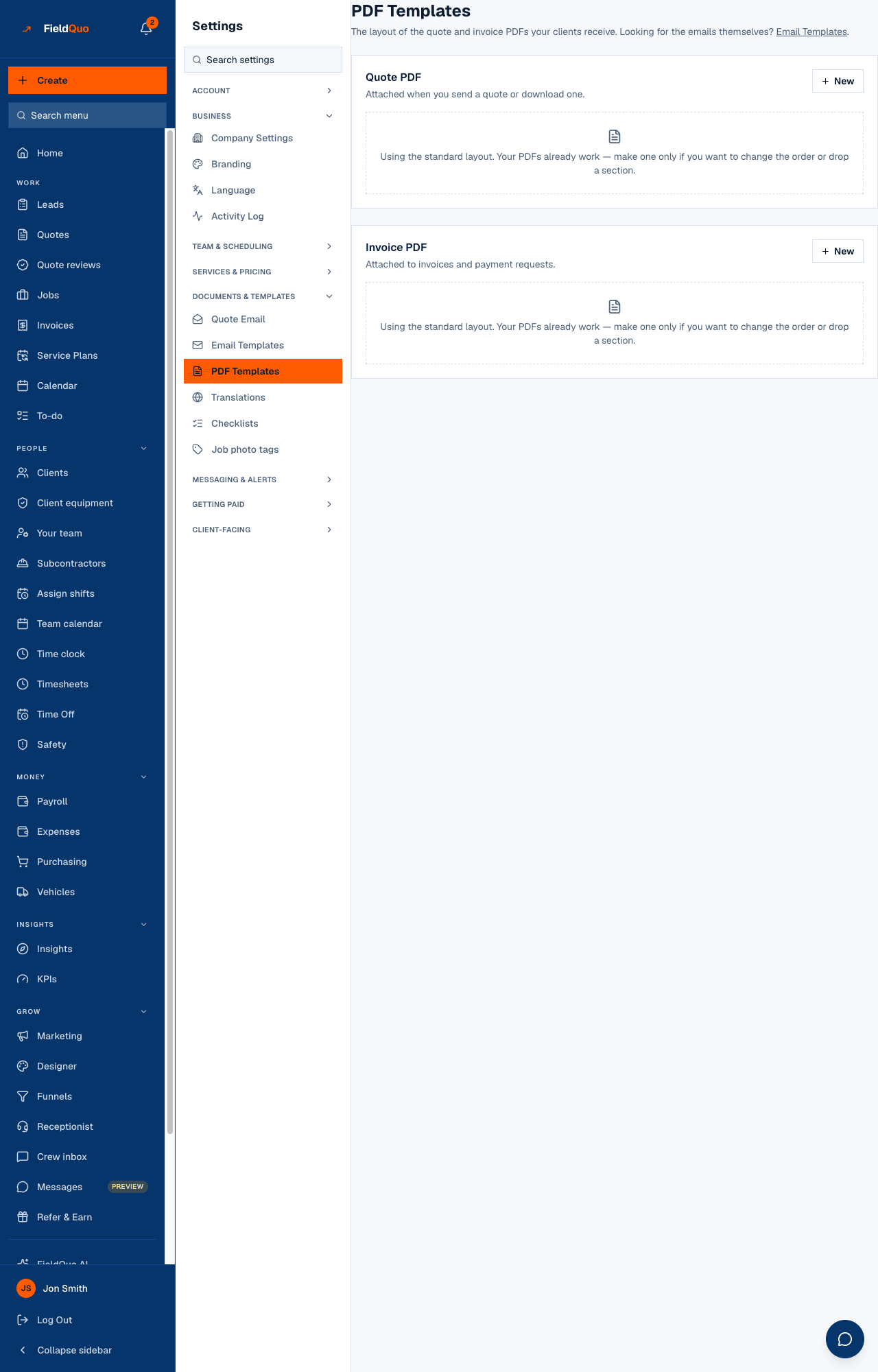
The standard layout
A quote reads, top to bottom: Header, Client details, Line items, Totals, How the work runs, Payment terms, Notes, Signature block, Footer. The steps sit after the total on purpose — the client's eye goes to the price first, and the question right after is whether it is worth it. An invoice is a demand rather than a pitch, so its standard layout is Header, Client details, Line items, Totals, Payments received, Notes and Footer: no steps, no signature. Invoices mirror quotes so the client recognises the second document as the first one's twin.
How to make and use a layout
- Press New on the Quote PDF or Invoice PDF card, name it (the name is for you — clients never see it) and choose Start from the standard layout or Copy the current one.
- In Edit layout, the list Sections, top to bottom has Move up, Move down and Remove section on each row, and Add a section for any you took out. If you remove one that matters, the editor says so: the PDF will still generate, but it will not look like a finished document.
- Press Preview with sample data, then Save.
- Back on the list, press Use this. From then on every new quote (or invoice) PDF is rendered with it.
Delete is permanent and asks first. Deleting the layout marked currently in use reverts every future PDF to the standard layout — a change to what clients receive, from a screen that looks like housekeeping.
Who can see it
Every control here needs user:manage, so the row is shown to owners, admins and supervisors. The colours in the PDF come from your brand colour under Branding, never from this screen; what each section prints is described in The quote PDF.
ਅਕਸਰ ਪੁੱਛੇ ਜਾਂਦੇ ਸਵਾਲ
Do I need a layout for my PDFs to work?
No. With no layout, or none in use, PDFs use the standard layout, which is complete.
Can I change the wording inside a section?
Not here. This screen orders and removes sections. The words come from the quote and from the per-trade wording on Services & Pricing.
ਕੀ ਇਹ ਮਦਦਗਾਰ ਸੀ?