

Notifications for you: email and browser
The three company-level alerts FieldQuo can email the owner about, the appointment-reminder text setting that lives on the same screen, and browser notifications per person and per browser.
本文目前提供英语、法语和西班牙语版本。您正在阅读英语版本。 Français · Español
Settings → Notifications is about what FieldQuo tells *you* — as opposed to the quote, receipt and follow-up emails your clients receive, which are set up under Email Templates and Follow-ups. It holds two email alerts for the owner and administrators, the lead time for the reminder text your clients get before an appointment, and a switch for system notifications in your own browser.
Every card on this page is honest about its state: an alert that has never been set up says so, and the browser card says whether notifications can reach you with the tab closed or only while a FieldQuo tab is open.
Overview
Two kinds of thing live here. The first three cards are company-wide rules — one setting for everybody, changed by an owner or administrator. The Browser notifications card is personal: it decides whether *this* browser on *this* computer or phone rings for you, and every member sets it for themselves.
What is on the screen
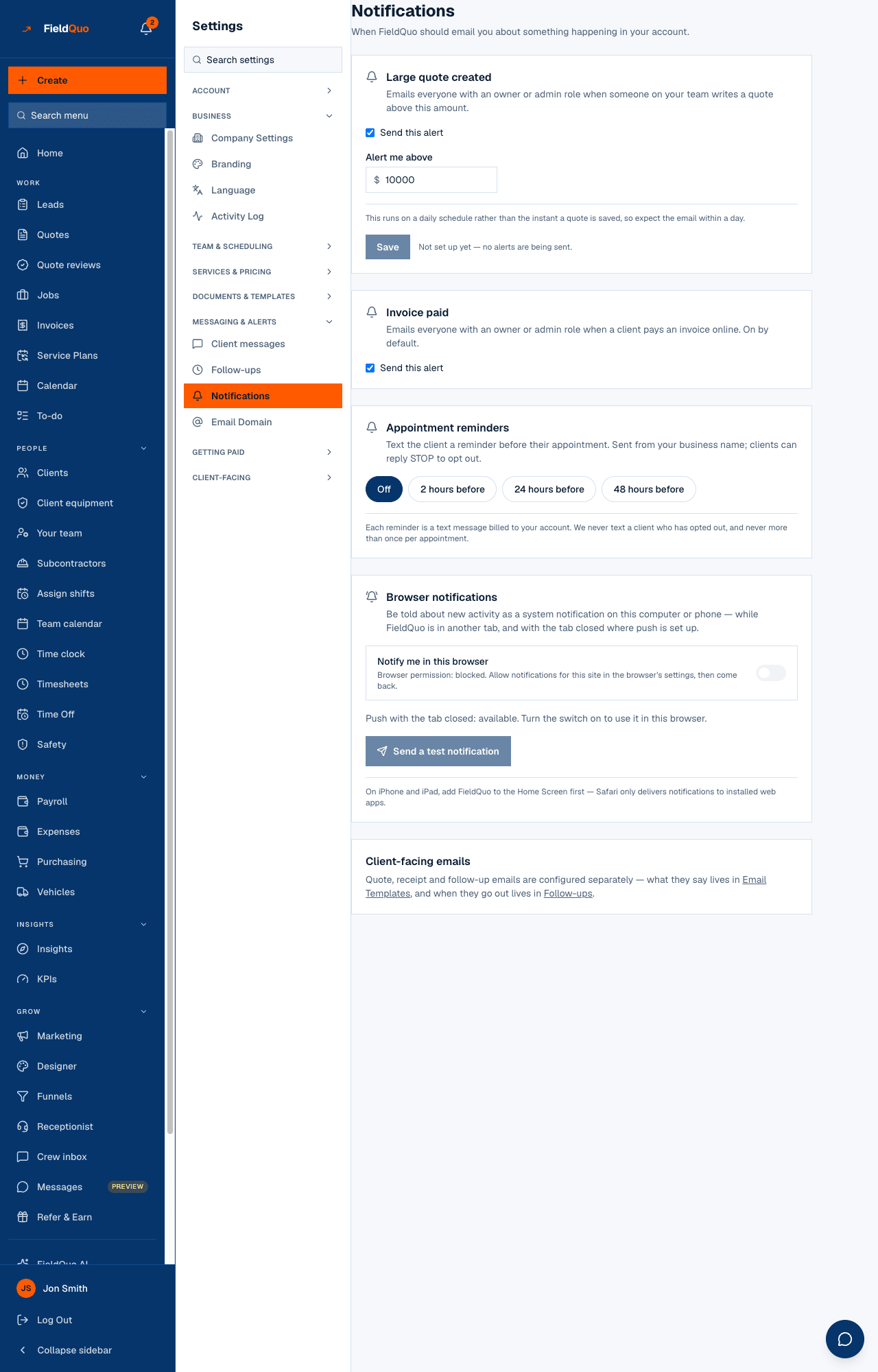
- Large quote created — “Emails everyone with an owner or admin role when someone on your team writes a quote above this amount.” A Send this alert checkbox, an Alert me above amount, and Save. Until it is saved once it reads “Not set up yet — no alerts are being sent.”
- Invoice paid — “Emails everyone with an owner or admin role when a client pays an invoice online. On by default.” One checkbox, saved the moment you tick it.
- Appointment reminders — “Text the client a reminder before their appointment.” Four pills: Off, 2 hours before, 24 hours before, 48 hours before. This one is a text to your *client*, not an email to you; it sits here because it is the company's one reminder setting.
- Browser notifications — “Notify me in this browser”, the browser's permission state, whether push with the tab closed is available, and Send a test notification.
- Client-facing emails — a pointer: what those emails say lives in Email Templates, and when they go out lives in Follow-ups.
How to set up the email alerts
- Open Settings → Notifications.
- Under Large quote created, tick Send this alert, type the amount under Alert me above (the box hints 10000) and press Save. The amount must be above zero.
- Under Invoice paid, leave the box ticked to keep the alert, or untick it to stop the emails. It saves on its own.
- Under Appointment reminders, press the lead time you want. It saves as soon as you press it, and the pill turns solid.
| Alert | Who receives it | When |
|---|---|---|
| Large quote created | Everyone with an owner or admin role, by email | Checked on a daily schedule, not the instant a quote is saved — expect the email within a day. A quote below the amount sends nothing. |
| Invoice paid | Everyone with an owner or admin role, by email | When a client pays an invoice online through the Pay button or the portal. A payment you record by hand (cash, cheque, e-transfer) does not trigger it. |
| Appointment reminders | Your client, by text, from your business name | Checked every hour; the text goes once the appointment is inside the lead time you chose — once per appointment, never to a client who has opted out, and only to a client with a phone number. |
The reminder text goes to appointments on your Schedule — a booking from your booking page, one the receptionist took, or one you added with New Appointment. A visit scheduled on a job is a different record and is not texted a reminder. The wording of the text is edited under Settings → Client messages.
Browser notifications
Turn on Notify me in this browser and the browser asks for permission once. From then on, while a FieldQuo tab is open in the background, new activity arrives as a system notification at the corner of your screen; with the tab in front it is a small toast instead. Where push is set up on the deployment, the card reads “On. You'll be notified here, and with the tab closed.” — otherwise “On. You'll be notified while a FieldQuo tab is open.” The card tells you which, and never claims more than it can do.
- The activity feed behind the bell icon — a quote accepted, an invoice paid, a new lead, a payment disputed, a quote that could not be delivered, a leave request.
- A new message from a client in the Messages inbox (Facebook, Instagram, WhatsApp), for anyone allowed to read that inbox.
- In Chat: a direct message to you, and any message that @mentions you.
On iPhone and iPad, add FieldQuo to the Home Screen first — Safari only delivers notifications to installed web apps. If the browser has blocked notifications for the site, the card says so and nothing is on until you allow them in the browser's own settings.
Press Send a test notification after turning it on. It shows a “FieldQuo test” notification in this browser and, where push is on, sends one to every browser you have enabled it in — the quickest proof that your phone will buzz.
Who can see it
Owner and administrators only — the three company rules are theirs to change, and the row is hidden from everyone else. The browser switch is per person, so an owner turning it on does nothing for a colleague's phone; each member turns it on in their own browser.
常见问题
Why did nobody get the large-quote email when I wrote a $40,000 quote this morning?
The check runs on a daily schedule, so the email arrives within a day rather than at once. Also make sure the alert reads a saved amount rather than “Not set up yet”.
Can I be emailed when a new lead comes in, or when a quote is accepted?
Not by email from this screen. Those arrive in the activity feed behind the bell, and as a browser notification if you turn that on.
Does the reminder text cost anything?
The card says each reminder is a text message billed to your account, sent from your business name, never more than once per appointment and never to a client who has opted out.
这篇文章有帮助吗?