

Your hours
Two weeks per person on one screen: Working hours, the shift the schedule and timesheets use, and Bookable hours, the window clients can book on the public page — with a picker to set someone else's.
本文目前提供英语、法语和西班牙语版本。您正在阅读英语版本。 Français · Español
The Availability row opens a page titled Your hours, and it is one of the four Settings rows every member sees, because these hours are the person's own. It holds two different weeks on purpose: Working hours, the shift, and Bookable hours, the window a client may book. An estimator works 8 to 4 but only takes consultations 2 to 4 because mornings are on site; one week cannot say that.
Someone with team access also gets a Whose hours picker at the top and can set a colleague's weeks — which is how a crew member who never signs in becomes bookable.
Overview
The subtitle reads Your shift and your bookable window are separate. They might work 8–4 but only take client bookings 2–4 — set both here. The page warns when the bookable window falls outside the shift, because that is usually a mistake, but it allows it, because sometimes it is not.
Neither week is the company's opening hours. Those live on Company Settings so that one person's day off is never published as the shop being closed — see Opening hours.
What is on the screen
Top to bottom:
- Whose hours — a dropdown of active team members with (you) on your own name; shown only to people who may edit others. Choosing someone else retitles the page …'s hours and shows the amber line You're editing someone else's hours. They'll see the change on their own schedule.
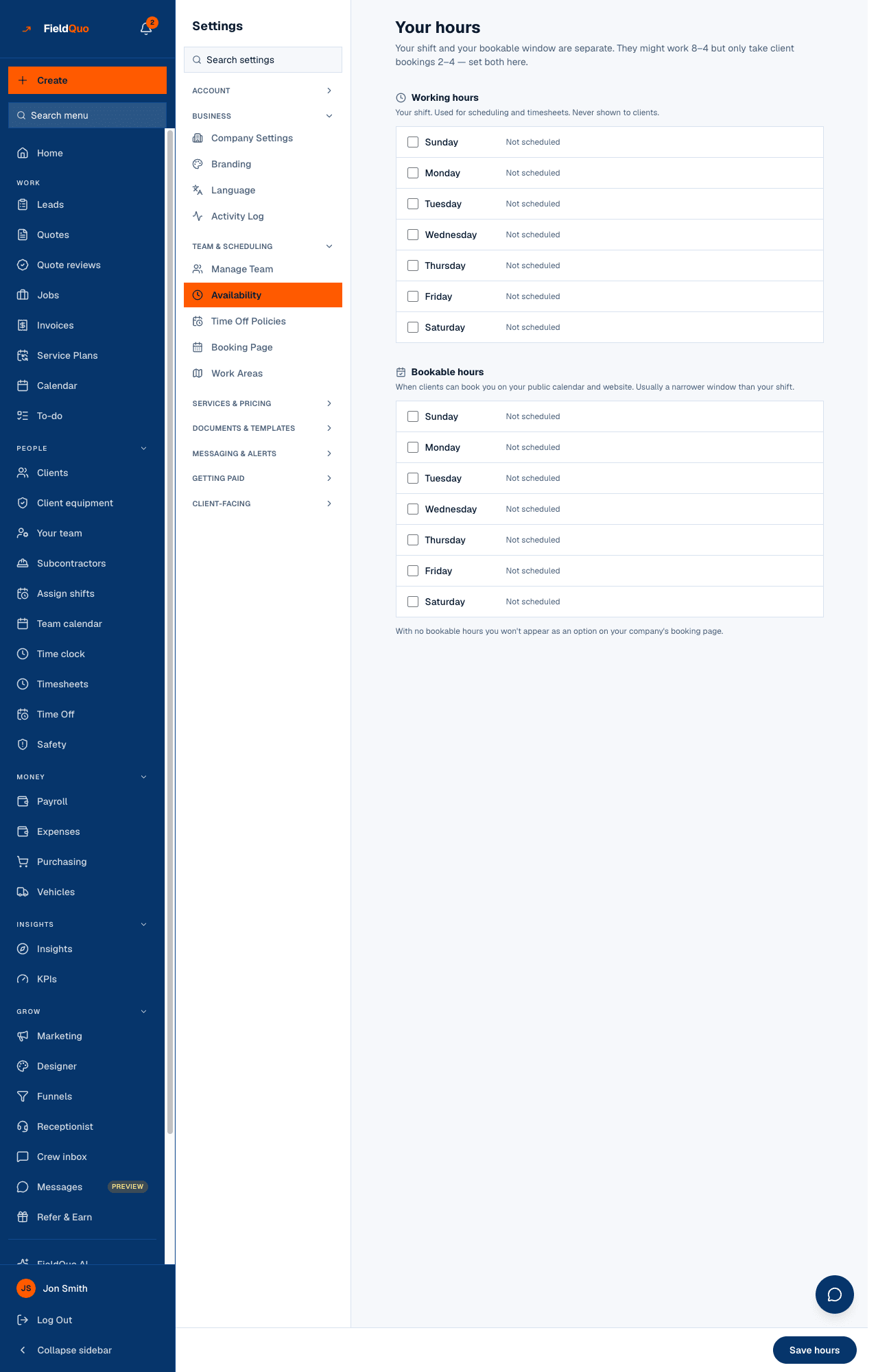
- Working hours — Your shift. Used for scheduling and timesheets. Never shown to clients. Seven rows, each a checkbox and two times; an unticked day reads Not scheduled.
- Bookable hours — When clients can book you on your public calendar and website. Usually a narrower window than your shift. The same seven rows. Under it, when nothing is ticked: With no bookable hours you won't appear as an option on your company's booking page.
- Save hours — pinned to the bottom of the screen so it is reachable on a phone under two full weeks; both weeks save together.
How to set your hours
- Open Settings → Availability. If you are setting a colleague's, pick them under Whose hours.
- Under Working hours, tick the days of the shift and set start and end for each.
- Under Bookable hours, tick the days a client may book and set a window — usually narrower than the shift.
- Read the amber line if one appears: Clients could book you when you're not working: followed by the days and why. That is allowed; just check it is intentional.
- Press Save hours. A day whose end is not after its start is refused with Fix the highlighted times until corrected.
New hire starting Monday? Set their hours the day you invite them. A person with no bookable hours is not offered on the booking page, and a person with no working hours gives the schedule nothing to compare a shift against.
What each week changes
| Week | Read by |
|---|---|
| Working hours | The schedule, which warns — never blocks — when a shift falls outside the usual pattern; the payroll period; and time off, which deducts only the person's own working days, so a Tuesday-to-Saturday crew loses no balance for a Monday. |
| Bookable hours | The public booking page and the booking calendar on your website, which offer this person only inside the window; and the schedule, which refuses a shift outside it unless a manager overrides and records why. |
With no bookable hours set for anyone, the booking page has nobody to offer and shows no slots at all. The dashboard's setup steps point here for that reason.
Who can see it
Everyone sees the row and can set their own two weeks. The Whose hours picker, and saving for another person, need the user-management capability — the owner, administrators, Managers and Dispatchers. The server resolves the target the same way, so a picker that is not drawn cannot be reached another way.
常见问题
Why do I have a Whose hours picker but my crew does not?
The picker is drawn only for people who may edit others. A crew member sees and edits their own week only.
Do these hours change what my website says about opening times?
No. Opening hours are the company's, on Company Settings. These are yours, and only the booking calendar reads the bookable week.
Can working hours block a manager from scheduling me on a Saturday?
No — working outside the usual pattern is not an error, it is Tuesday. The schedule warns and lets the manager decide. Approved time off is what blocks.
这篇文章有帮助吗?