

Quote Email
The two optional sections of the email that carries your quotes — past-client references and before-and-after photo pairs — and the rule that stops an empty one going out.
Per ora questo articolo è disponibile in inglese, francese e spagnolo. Stai leggendo la versione inglese. Français · Español
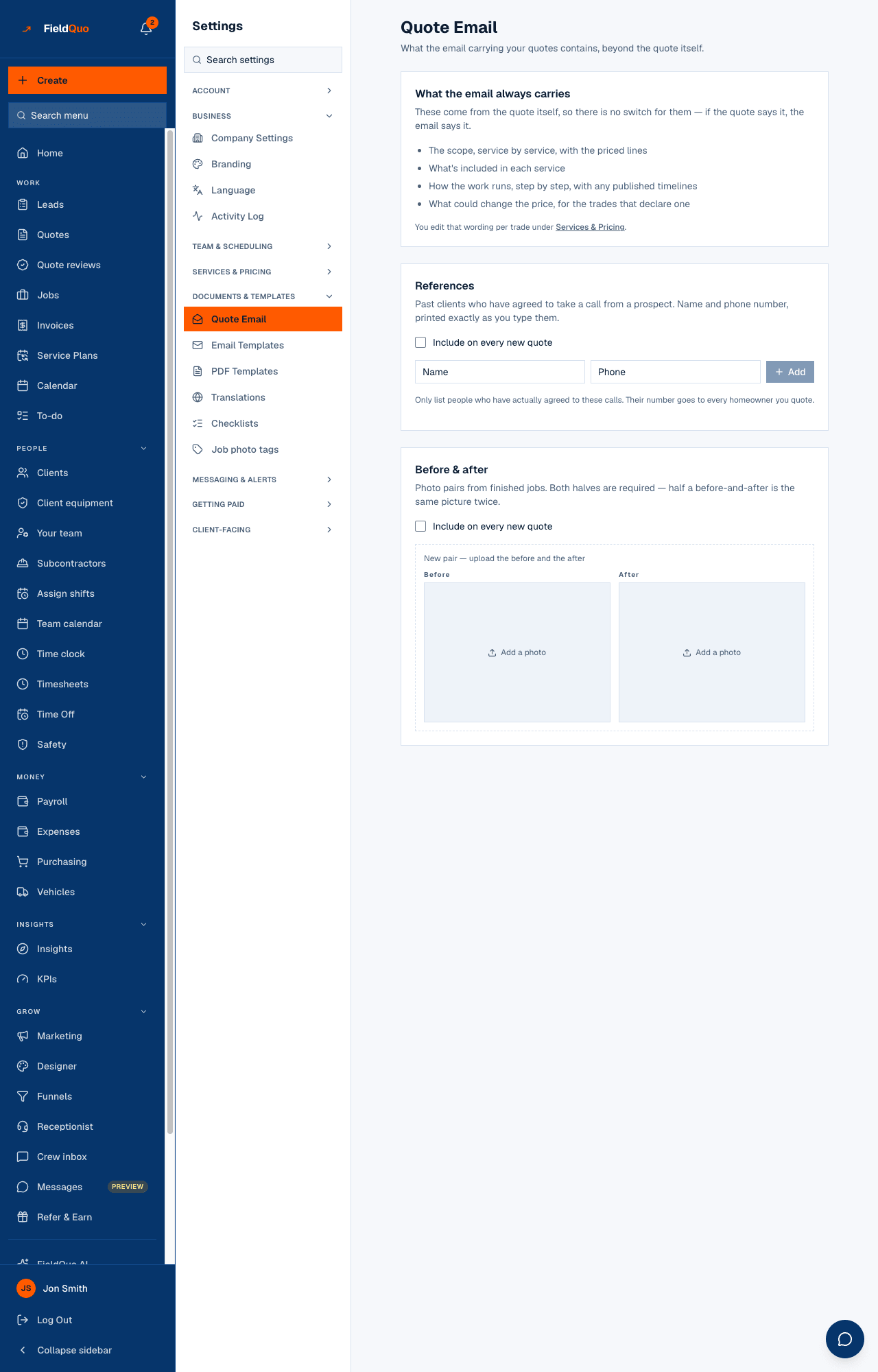
Settings → Documents & templates → Quote Email is about what the email carrying a quote contains beyond the quote itself. Most of that email is not configurable here and has no switch: the scope, what is included, how the work runs and what could change the price all come from the quote and from the wording you edit per trade under Services & Pricing. If the quote says it, the email says it.
What is optional is your own proof — the people a homeowner can ring, and the photos of jobs you finished. This screen holds both, decides whether they go on every new quote by default, and every change is saved as you make it.
What is on the screen
Three cards. What the email always carries is a plain list with no controls, and a link to Services & Pricing where that wording is edited. References and Before & after each have a checkbox Include on every new quote, a list, and an add form. There is no Save button; each edit saves at once and the page re-renders from what was actually stored.
References
- In References, type a Name and a Phone and press Add. Both are required — a name with no number is not a reference — and they print exactly as you type them.
- Tick Include on every new quote to put the list on every new quote by default.
- Use Remove on a row to take someone off.
Only list people who have actually agreed to these calls. Their number goes to every homeowner you quote. The email prints at most 6 references.
Before & after
- Under Before & after, press New pair — upload the before and the after and add a photo in each of the Before and After slots. Both halves are required.
- Add a Caption (optional) and tick Include on every new quote if the pairs should go out by default.
The email prints at most 4 pairs — eight images is already slow on a phone in a driveway. The uploads go through the same signed upload as your logo and job photos.
What a switched-on empty section does
A section that is switched on with nothing in it must never reach a client. So FieldQuo blocks the send instead: the page says This is switched on with nothing in it. Until you add something or switch it off, quotes can't be sent., and when someone presses Send on a quote they get a modal naming the section with two buttons — Add content, which brings them here, and Leave it out of this quote.
Each quote can also override the default. The Email sections panel on a quote shows Default (on) or Default (off) for each section and lets you switch it on or off for that quote alone, or give it its own list. See References and before-and-after photos in the quote email.
Who can see it
The row needs user:manage — owners, admins and supervisors. Anyone else who reaches the page sees it read-only with the notice This is what your clients receive with every quote. The covering email itself goes out in the quote's language, under your company's name.
Domande frequenti
Can I edit the rest of the quote email here?
No. The scope, inclusions and steps come from the quote and the per-trade wording on Services & Pricing; the layout comes from Email Templates only for follow-ups and campaigns. This screen owns the two optional sections.
I ticked Include on every new quote — will old quotes get it?
No. It is the default for new quotes. An existing quote keeps whatever its own Email sections panel says.
È stato utile?