

The time clock
The crew's own punch: clock in against the job they are on, switch jobs mid-day, clock out, and see today's hours — with one position captured at the tap so the timesheet can show how far from the site it was.
Поки що ця стаття доступна англійською, французькою та іспанською. Ви читаєте англійську версію. Français · Español
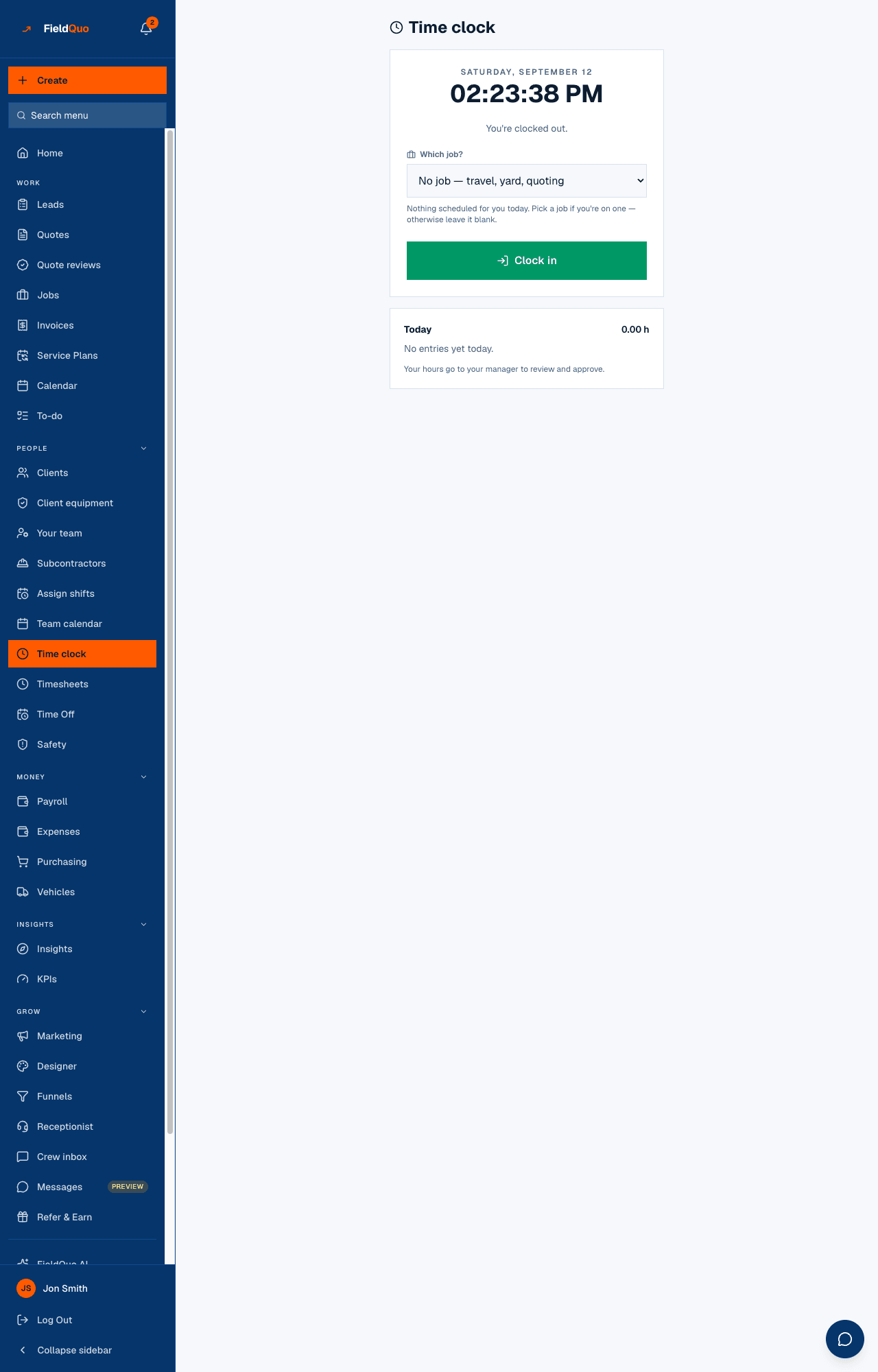
Time clock is the one screen an hourly worker touches every shift, so it is kept spare: the date, a live clock, one big button, today's total. Every tap writes a plain time entry that goes to the manager to review on Timesheets — no pay maths happens here.
Each entry can name the job it was worked on, which is what lets job costing know what a job's labour really cost. An hour with no job — travel, the yard, a morning of quoting — is a real hour and is recorded as exactly that.
Still clocked in?
Every fifteen minutes FieldQuo looks for a clock-in that has outlived its shift. If your published shift ended more than thirty minutes ago and you are still on the clock — or, with no shift behind the entry, you have been clocked in for fourteen hours — your phone gets one push, Still clocked in?, and your manager gets a note. Once per entry, never every quarter hour.
Nothing is closed for you. Whether you left at 16:00 or worked until 19:00 is a pay question, and only a person answers it: you, by clocking out, or your manager, with the manual clock-out on the timesheet. A clock that guessed would either invent hours or take them away.
Every punch — in, out, a job switch, lunch and break — is also written to the company's Activity log with the time, so a later edit to the entry never erases what the clock originally recorded.
What is on the screen
Two tabs: Track time and Time log. Track time shows what you are doing now — the activity (On site, Driving, Office, Supplies, Break, Lunch or General, whichever your company uses), how long you have been on it, Since when, and On {job} — then Total today. Below, the activity tiles, with the running one lit and a red Clock out on the last row. Today lists each stretch with its activity, times and job, with the line “Your hours go to your manager to review and approve.” Time log shows a whole day as a timeline, one person at a time; a manager who can see everyone's hours sees everyone.
How to clock in, switch and clock out
- Tap the tile for what you are starting. That clocks you in. On site asks which job first — today's only visit is already picked; with several, pick the one you are starting. Driving and Supplies let you pick a job, so the time counts toward it, or leave No job. Office and General never take a job.
- If the browser asks where your phone is, that is the one-time position beside this tap — say yes or no; the punch records either way.
- Moving on? Tap the next tile. What was running closes at that instant and the new activity starts, so the time so far keeps the activity and job it was worked on. Break and Lunch pause what you were doing; End break — back to …, or the same tile, carries on.
- Press Clock out at the end of the day. Everything closes and appears under Today and in the Time log.
Tapping the tile that is already running does nothing — the clock refuses it rather than doubling it. A forgotten clock-out is fixed on Timesheets — see Timesheets: review and approve hours.
What the location stamp is, and is not
When you tap Clock in or Clock out, the phone is asked where it is — once, with your permission through the phone's own prompt — and that one position is kept beside the punch. Nothing runs in the background and nothing is tracked between taps; a browser cannot do that, and FieldQuo does not pretend to.
- On Timesheets the punch shows On site when it was within about 250 m of the job's site address, or 2.1 km away when it was not — a question for the manager, not a verdict.
- No position is shown when the phone did not answer, the job has no site address, or the reading was too rough to trust.
- Refusing the permission changes nothing about the punch. The answer is remembered for the session; you are not asked again on the next tap.
Where the hours go
- Every entry is pending until a manager approves it on Timesheets; approved hours feed payroll.
- Hours on a job feed that job's costing as labour. Hours with no job are counted and named as unattributed on the costing panel rather than dropped. See Job costing: quoted against actual.
- Driving and Supplies time linked to a job counts toward that job's cost, but only On site time is offered as labour on the client's invoice.
- You do not change an entry yourself. On the Time log, Request a correction sends the fix to your manager, and the entry stays as it is until they approve it — see Correction requests.
Who can use it
Anyone with a worker record, at every access level — the clock is scoped to the signed-in person and nobody can punch for somebody else. Without a worker record the screen says “You're not set up as a worker yet. Ask an admin to add you under Team.”
An owner or administrator can switch the clock off for one person. It then leaves that person's menu and the clock refuses them — see Switch the time clock off for one person.
Часті запитання
Do I need the app?
No. The time clock is a web page that works on whatever phone you have. See Clock in and out on your phone.
Does FieldQuo track where I am during the day?
No. It asks for one position at the moment you tap, if you allow it, and nothing in between.
I forgot to clock out yesterday.
The entry is still open. Clock out now, then open the Time log, go back to yesterday and press Request a correction with the time you really left. Your manager approves it on Timesheets.
Чи була ця стаття корисною?