

FieldQuo 独有
The website builder
Describe how your site should feel, and FieldQuo writes it from the details you already entered — then Save, Publish, and change it by typing again.
本文目前提供英语、法语和西班牙语版本。您正在阅读英语版本。 Français · Español
Settings → Your website builds a real website for your company on its own address. You do not fill in a form: you type one sentence about how the site should look and feel, and the builder writes the pages from what FieldQuo already knows — your name, logo, brand colour, services, opening hours, contact details, job photos and approved reviews. Nothing is public until you press Publish.
This article is the whole screen: the first-run prompt, the conversation, the Layout and Style chips, Fine-tune, the Preview and Sections panes, and what Save, Publish and Update each do.
Overview
The builder is a conversation. On the left you tell it what to change (“Make it bolder”, “lead with reviews”, “shorter page”); on the right you see the live site exactly as a visitor will, because the preview is the real page, not a picture of it. The writing assistant writes sentences only. The list of sections, the service names and the testimonials come from your own data and are merged back after every rebuild, so the site can never describe a trade you do not offer or quote a review nobody left.
If the writing assistant is unreachable, the builder still produces a page — written plainly from your saved details — and says so in the thread. You get plainer words, never a broken site.
What is on the screen
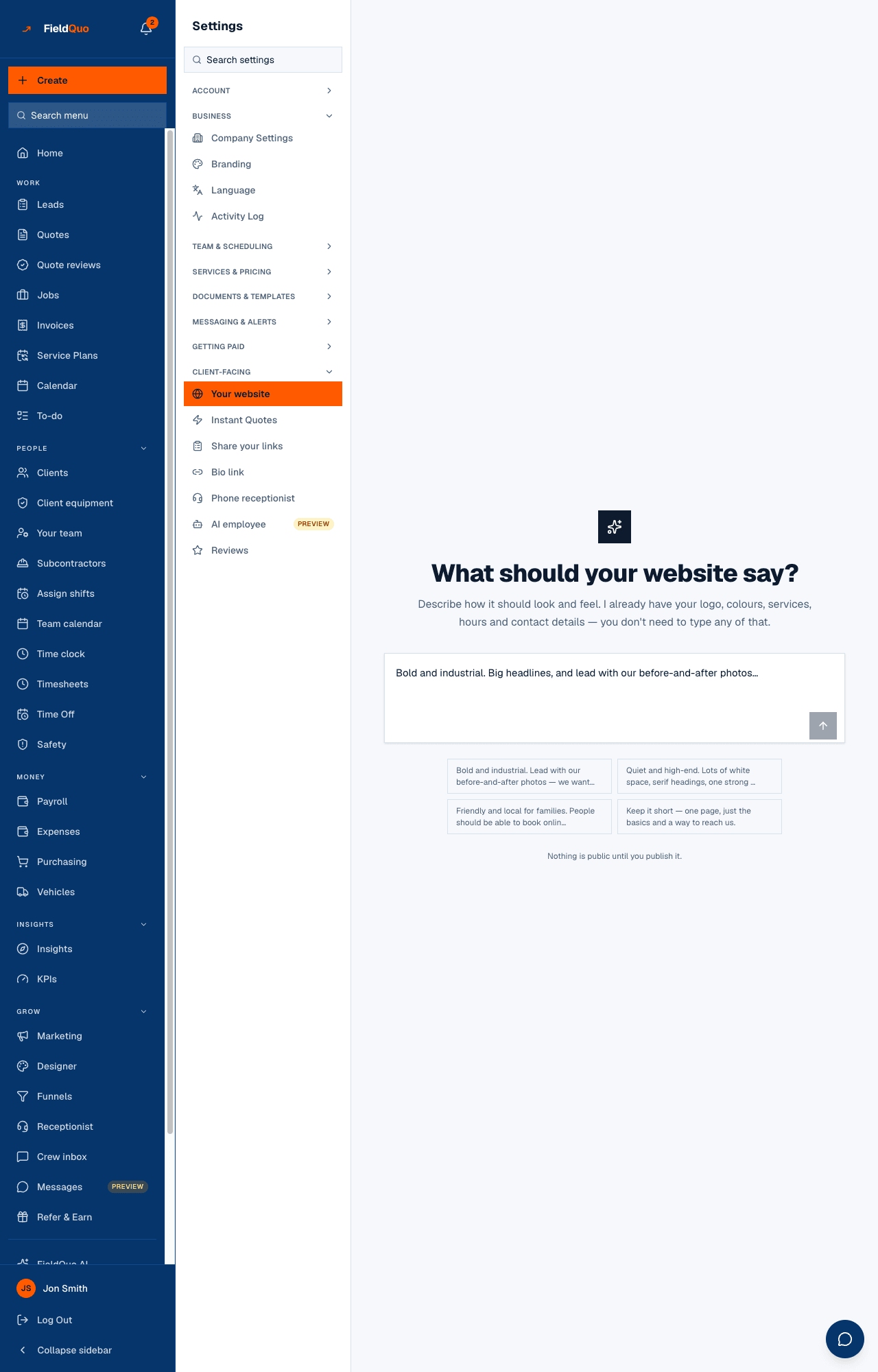
- First run — a single box under What should your website say?, four example chips you can tap to fill it, a Build my site arrow, and the line Nothing is public until you publish it.
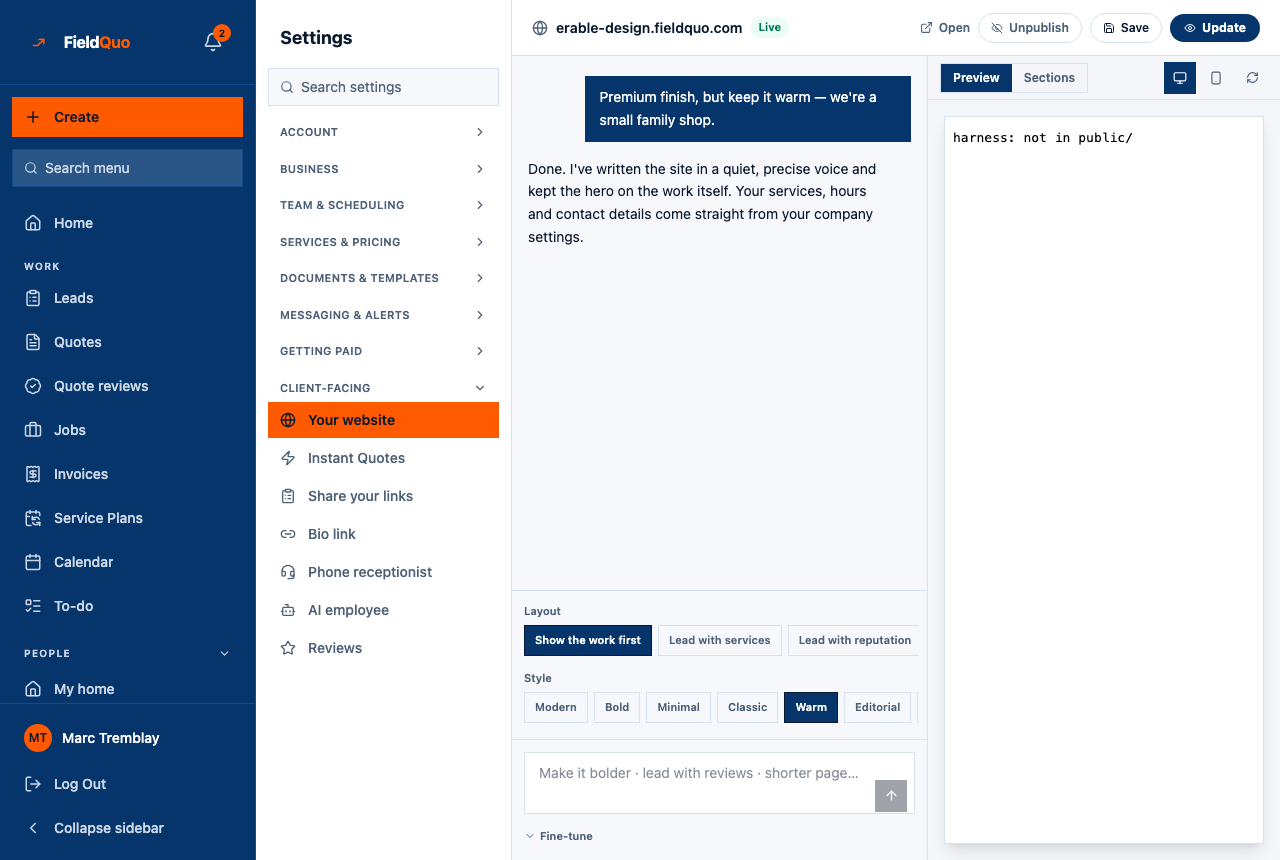
- The bar — your address (yourname.fieldquo.com), a Live badge once published, Open, Unpublish (only while the site is live), Save, and Publish (which reads Update once the site is live).
- The thread — what you asked for and what was built. When something is missing, the assistant says so with a one-tap action: Add photos, Pair them up, Add a logo, Add a review, Set hours, Choose services.
- Layout and Style chips, the prompt box (Make it bolder · lead with reviews · shorter page…), and the Fine-tune disclosure with Web address, Languages, Before & after pairs and the reviews embed.
- Preview | Sections — the live site with a desktop / mobile toggle and a refresh button, or the Home page's sections as text fields you can reword by hand.
How to build your first site
- Open Settings → Your website. Under the Client-facing group of the settings menu.
- Describe the feel in one or two sentences — tone, what to lead with, whether people should book online — or tap an example chip. You do not need to type your name, phone or services.
- Press the arrow (Build my site). The thread reports what was built (“Rebuilt your site: … sections”) and the preview loads the saved draft.
- Answer what the assistant asks for: add job photos, pair before-and-after shots, add a logo under Branding, approve a review under Reviews. Each one makes a section possible that was left out before.
- Press Publish. The site goes live at your address; the bar shows Live.
A prompt-driven build costs AI allowance from your plan's monthly quota; if the quota is used up the button says so instead of building. Picking a Layout or Style chip calls no model and is never blocked.
What each control changes
| Control | What happens |
|---|---|
| Typing in the prompt box and pressing send | Rewrites every heading and paragraph on every page to match what you asked. Photos, before-and-after pairs, logo and colours are kept. The result is saved at once, so the preview always shows it. |
| A Layout chip (Show the work first, Lead with services, Lead with reputation, Lead with booking, Short one-pager) | Rearranges the same site into that shape. Your wording and photos carry over; no AI is used. |
| A Style chip (Modern, Bold, Minimal, Classic, Warm, Editorial, and more) | Changes type, spacing and the way your brand colour is applied. Wording and photos carry over. |
| Sections pane | Reword any heading or paragraph on the Home page by hand, choose a section's layout variant, add or remove a photo, Hide or Show a section. Your logo, colours, services, hours and contact details are not editable here — change them in company settings and the site updates. |
| Save | Saves the draft. Once the site is live there is no separate draft: a saved change is what visitors see. |
| Publish / Update | Makes the site public at your address, or re-confirms it. Needs a company that has finished signing up for a plan. |
| Unpublish | Takes the site offline after a dialog — Take your website offline? — that says what happens: visitors see a “not published” page straight away, Google drops the listing over the following days, and every section, photo and language is kept. Publish puts the same site back. |
| Languages (under Fine-tune) | Adding a language writes the whole site in it — it is not machine-translated — and gives visitors a switcher in the header. Your main language is marked and cannot be removed. |
If you reworded sections by hand and then type a new prompt, the builder stops and asks: This will rewrite the words you edited. Choose Keep what I wrote or Rebuild anyway. Photos and pairs survive either way; typed headings and paragraphs do not.
Publishing, stock photos and taking the site down
When you have no photos yet the builder uses stock photography so the page is not empty — only as a background in the header and similar spots, never in Our work, because that section says the photos are jobs you did. Publishing with stock photos still on the page is allowed but never silent: a dialog counts them and offers Add my photos or Publish anyway.
To take a live site down, press Unpublish in the bar and confirm Take it offline. Nothing is deleted: the thread says Your site is offline. Nothing was deleted — publish again whenever you're ready., the Live badge goes, and the address answers with a “not published” page until you press Publish again. Cancelling your subscription asks you to unpublish first; this is the button it means.
What this builder does that a website template does not
- It is written from what you already told FieldQuo — services, hours, reviews, job photos — and stays in step with them: change your phone number in Company Settings and the site changes.
- The booking calendar, the quote request form and the instant estimate are sections of the site, not links out to another product. A visitor books a real slot from your availability and the request lands on your Leads board.
- The layouts are a closed set that was designed and checked on a phone. The assistant picks from them; it never emits a style rule, so a rebuild cannot produce a page that is broken on mobile or unreadable against your brand colour.
- It is included on every plan, and a paid company's site carries no FieldQuo name anywhere — see The “Site by FieldQuo” footer.
Who can see it
The screen, its saves, Publish, Unpublish, languages and photos are for owners and administrators only — one rule for the whole website, because a published page is the company's public face. Everyone else, Dispatchers and Managers included, does not see the row and the page refuses them. Publishing also needs a company that has finished checkout — a trial that never added a card can build the site but not put it in front of the public.
常见问题
Will a rebuild delete my photos?
No. A rebuild rewrites words only; job photos, before-and-after pairs, your logo and colours are carried across every time. Only text you typed by hand in the Sections pane is replaced, and the builder asks first.
Can I edit the site without the AI?
Yes. The Layout and Style chips and the Sections pane use no model at all, and they work even when the writing assistant is unavailable or your monthly allowance is spent.
Does the preview show what visitors see?
Exactly that — the preview is the real page rendered with a preview flag that only a signed-in member of your company can use. A stranger who guesses the address of an unpublished site gets a not-found page.
Is the site translated automatically?
No. Adding a language under Fine-tune writes a full version of the site in that language and adds a switcher; nothing is machine-translated at view time. Eight languages are available: English, French, Spanish, Ukrainian, Punjabi, Tagalog, German and Italian.
这篇文章有帮助吗?