

How FieldQuo works for dispatchers and managers
The two levels that run the crew's week — what a Dispatcher can and cannot do, what a Manager adds, and the screens where the week actually happens.
本文目前提供英语、法语和西班牙语版本。您正在阅读英语版本。 Français · Español
Dispatcher and Manager are the two access levels for people who run other people. Both can see everyone's schedule and everyone's hours, both can invite crew, and both have every setting a shop needs day to day. The difference is deletion and money: a Manager can delete records, see job costs and collect payments; a Dispatcher can do none of those three.
If your row on Your team says Dispatcher or Manager, this article is what your sidebar is showing you and why.
Overview
The Dispatcher level is built for the team lead who books the crew, moves visits and keeps the week honest, without the power to remove anything. The Manager level is the office manager or the partner who runs operations — everything except payroll and the company's own billing, which stay with the owner.
Both levels share the same tier, so the same screens appear in the sidebar for both. Where they differ is inside those screens: what a button does when pressed, and whether a delete control is there at all.
Dispatcher against Manager, area by area
| Area | Dispatcher | Manager |
|---|---|---|
| Schedule | Edit everyone's schedule | Edit and delete everyone's schedule |
| Time tracking and timesheets | View, record, edit and delete everyone's | View, record, edit and delete everyone's |
| Quotes, jobs, invoices, leads | View, create and edit | View, create, edit and delete |
| Clients | View and edit full client info | View, edit and delete full client info |
| Notes | View and edit all | View, edit and delete all |
| Expenses | Their own only | Everyone's — and the Expenses and Purchasing screens |
| Safety incidents | View everyone's and follow up | View everyone's and follow up |
| See prices | Yes | Yes |
| Job costing | No | Yes — quoted against actual, KPIs, Overhead, Material Costs |
| Collect payments | No | Yes |
| Payroll | Their own payslips | Their own payslips |
Every row is a dial the owner can change afterwards. If your row reads Custom, one of these was adjusted, and the table is a starting point rather than your exact grid.
How the week runs from these two levels
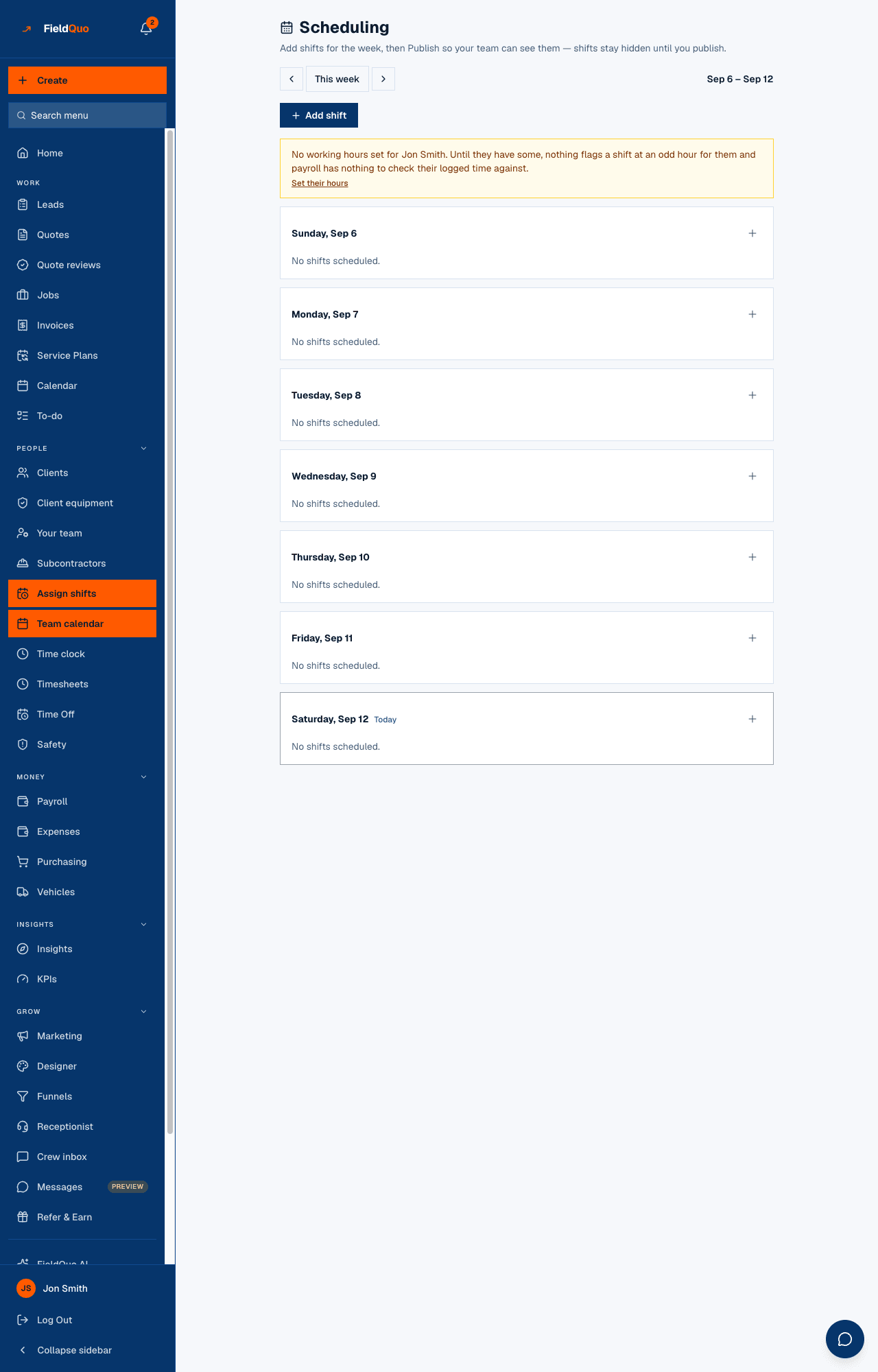
- Assign shifts — the crew's week as seven day cards. Add shift puts a person on a job with hours and a note. Shifts stay as drafts, invisible to the crew, until you press Publish week.
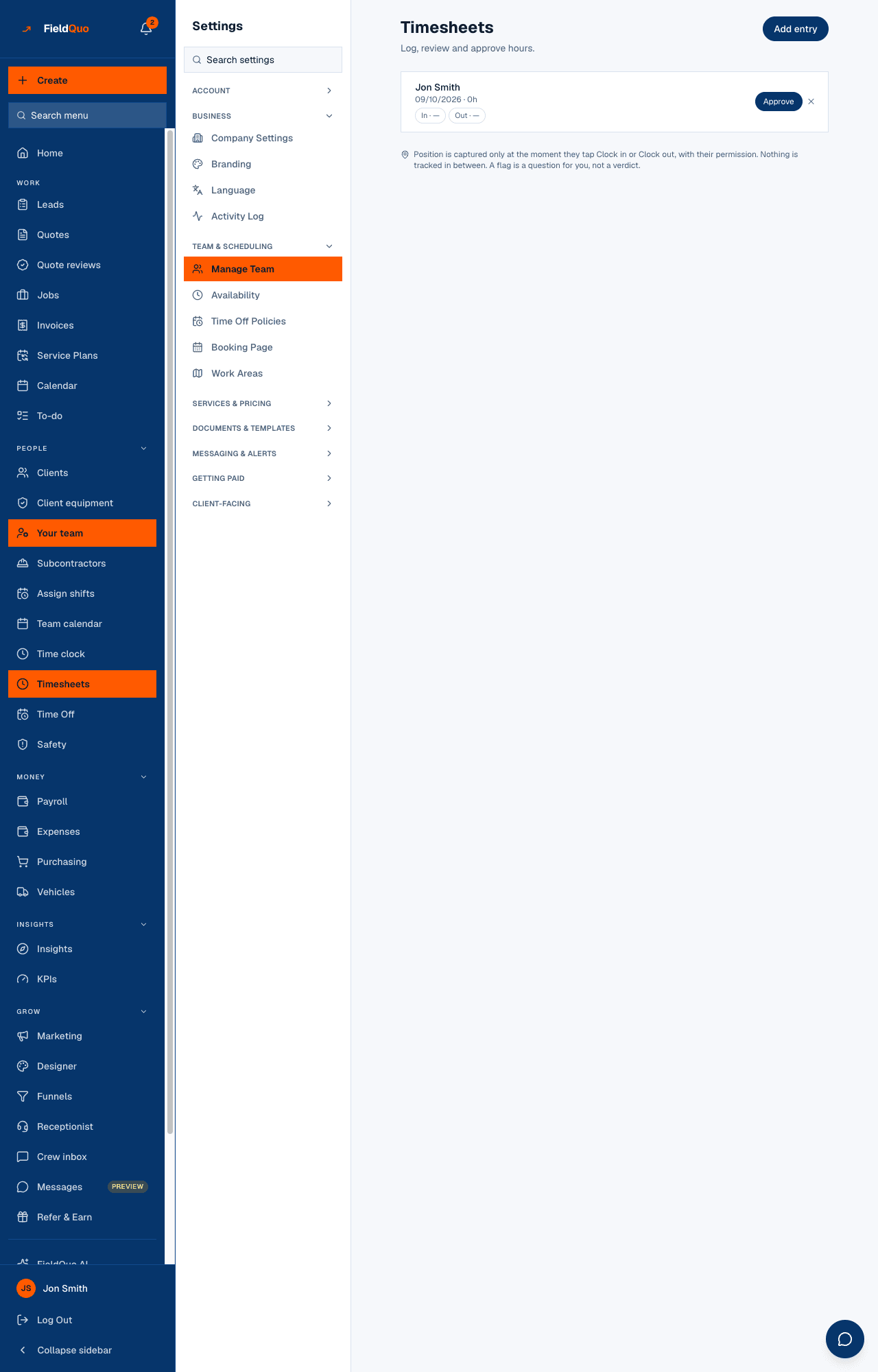
- Timesheets — one row per punch. A punch taken far from the job is flagged in amber. Press Approve on the hours before they reach a pay run; Add entry records a missed punch.
- Time Off — the Team tab lists requests awaiting approval with Approve and Decline, who is off next, and everyone's balances.
- Quote reviews — instant estimates from your website land here; a Dispatcher or Manager is the lowest level allowed to press Approve and let the price go out.
- Your team — press Add User to invite someone. You can only hand out what you hold: Crew or Estimator, with settings no higher than your own.
What neither level can do
- Open Plan or Settings → Account & Billing, Refer & Earn, Data Migration, Activity Log, Time Off Policies, Notifications, Payments, Meta Ads or Settings → Payroll. Those rows are not in your sidebar, and the pages refuse you if you type the address.
- Run a pay run or see anyone else's payslip. Payroll in the sidebar shows your own payslips only.
- Change an existing person's access, make someone an administrator, or deactivate someone.
- Invite a Dispatcher or Manager. Add User offers Crew and Estimator only.
If you are a Dispatcher and keep hitting a missing delete button or a hidden Cost & margin block, the fix is one dropdown: ask the owner to move your row to Manager.
The settings you can change
Both levels can open and change Company Settings, Branding, Booking Page, Work Areas, Custom Fields, Cabinet Pricing, the templates (Quote Email, Email Templates, PDF Templates, Translations, Checklists, Job photo tags), Client messages, Follow-ups, Email Domain, AI credit, and every client-facing row — Your website, Instant Quotes, Share your links, Bio link, Phone receptionist, AI employee, Reviews. A Manager additionally sees Material Costs and Overhead, because both need job costing. Both levels can read Products & Services, Services & Pricing and Instant Quotes, but changing a rate there is for the owner or an administrator.
常见问题
Why can I edit an invoice but not delete it?
You are a Dispatcher. Deletion of quotes, jobs, invoices, leads and clients is the Manager level. Cancelling or archiving a job is a status change, not a deletion, and is open to you.
Why does the crew not see the shifts I added?
Shifts are drafts until you press Publish week. The crew only ever sees published shifts.
Can I see what a job made?
Only at the Manager level, where job costing is on. A Dispatcher sees the quote and the hours, never the labour cost or the margin.
Can I add a second dispatcher?
Not yourself — Add User offers you Crew and Estimator. Ask the owner or an administrator.
这篇文章有帮助吗?