

How FieldQuo works for owners and administrators
What the owner's account can do that nobody else's can, how to add people and set what they see, and what “Make administrator” hands over.
本文目前提供英语、法语和西班牙语版本。您正在阅读英语版本。 Français · Español
The owner is the person who signed the company up. Their account has no access grid to consult: every screen, every setting, every button. This article is about the handful of things that are yours alone, and about the one screen — Manage Team — where you decide what everyone else gets.
If you are a business partner or a bookkeeper who was made an administrator, everything here applies to you too, with one exception: ownership itself cannot be transferred from the app.
Overview
Everyone else on your team is on one of four access levels — Crew, Estimator, Dispatcher or Manager — and their sidebar shows only the rows that level allows. Yours shows all of them. The list below is what is hidden from every level below you, including Manager; if a screen is not on it, a Manager can see it too.
Hiding a row is not the security. Every screen and every save is checked again on the server against the same rules, so a person who types an address they were never shown gets a refusal, not the page.
What only an owner or administrator can open
| Screen | What it holds |
|---|---|
| Plan (also Settings → Account & Billing) | Your plan, its price, the seats and crew logins you have used, the next billing date, Manage billing & payment method and Cancel plan. |
| Settings → Payments | The Stripe connection your clients pay through, with Manage in Stripe and Disconnect. |
| Settings → Meta Ads | Your Facebook and Instagram ad account, lead forms and WhatsApp connection. |
| Settings → Activity Log | Who did what and when — quotes sent, invoices chased, members invited, pay rates changed. Read-only. |
| Settings → Payroll | Pay frequency, deductions and statutory components. Running a pay run is also yours alone. |
| Settings → Time Off Policies | Vacation and sick-day policies, and the year-end carry-over. |
| Settings → Notifications | When FieldQuo emails you — a large quote, a paid invoice, appointment reminders. |
| Settings → Data Migration | The paid service where FieldQuo brings your old data in — see The data migration service. |
| Refer & Earn | Your referral link, the businesses you referred and the free months earned. |
Three actions are owner-and-administrator only whatever the screen: changing an existing person's access level, making someone an administrator, and deactivating someone. A Dispatcher or Manager can invite people, but only as Crew or Estimator, and only with settings no higher than their own.
How to add someone and choose what they see
- Open Your team in the sidebar (the same screen as Settings → Manage Team). The panel at the top shows seats used against your plan and crew — included free.
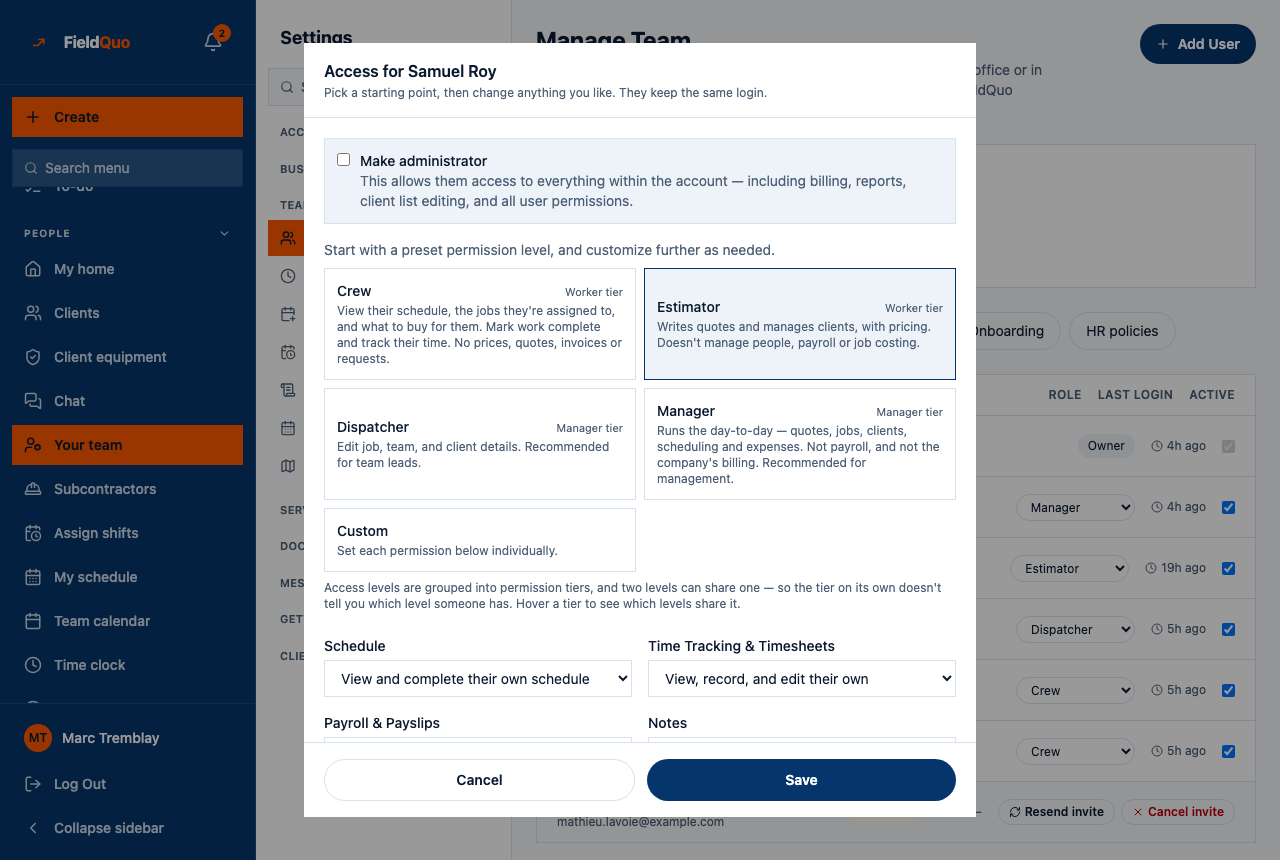
- Press Add User and enter their name and email. Pick an access level: Crew, Estimator, Dispatcher, Manager, or Make administrator. Press Custom… to open the grid and change any single dial.
- The invite goes out by email. Until it is accepted the row reads Invited, with Cancel invite beside it. Nobody can join your company without one of these invitations.
- To change someone later, change the dropdown on their row. Picking a preset sets their tier and every permission in one go; the grid opens if you want to adjust one thing, and the row then reads Custom.
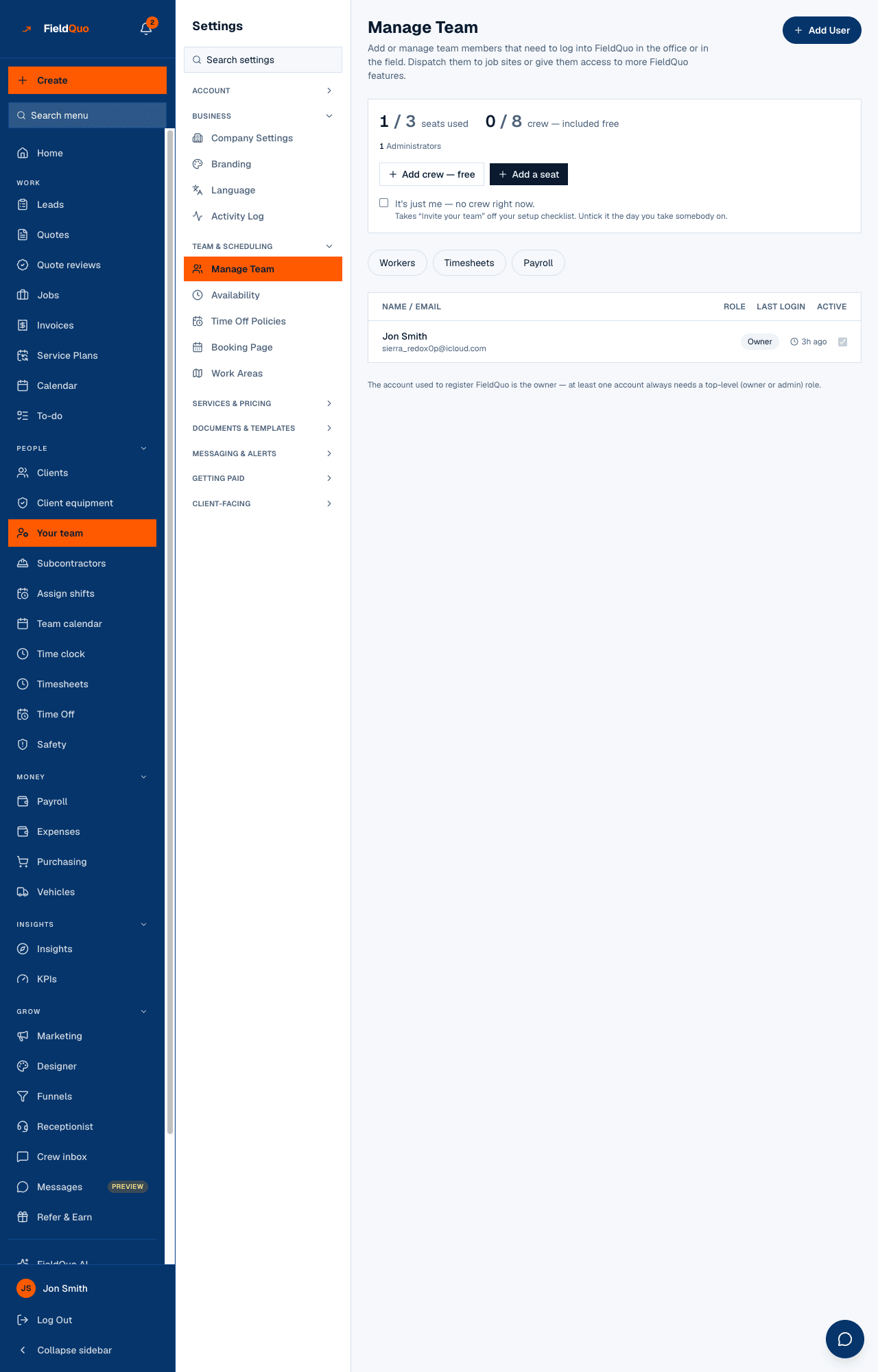
A person at the Crew level costs nothing and does not use a seat. Estimator, Dispatcher, Manager and administrators are full seats. Add a seat and Add crew — free sit in the same panel.
What “Make administrator” does
An administrator gets everything you have except ownership: the plan and the card, Stripe, payroll, the activity log, and the power to change anyone else's access. It exists for a partner or a bookkeeper who genuinely needs the money screens.
Do not use it for staff who only need to run the day. The Manager level already creates, edits and deletes quotes, jobs, invoices and clients, publishes the schedule, approves hours and collects payments — everything except payroll and the company's billing.
The screens an owner actually lives on
- Home — the Waiting on you list: the overdue invoice with Chase payment, instant estimates waiting for a price to be approved, the next appointment. See The dashboard.
- Quote reviews — nothing an algorithm priced reaches a homeowner until you or a manager presses Approve.
- Timesheets, Time Off and Assign shifts — approve hours, approve leave, publish the week. A Dispatcher or Manager can do all three for you.
- Settings → Activity Log — the answer to “who changed this?”.
- Plan — once a month, to check seats before you invite someone.
常见问题
Can I give my office manager everything except the money?
Yes — that is the Manager level. It runs quotes, jobs, invoices, clients, scheduling and expenses, and leaves payroll and the company's billing with you.
Can someone join my company on their own?
No. A new person only gets in through an invitation from Your team. Signing up on the public site creates a separate company, never a seat in yours.
Can I hand ownership to someone else?
Not from the app. Make them an administrator, which gives them everything except ownership, and get in touch if the ownership itself needs to move.
Does a Crew login cost anything?
No. Crew logins are included free with every plan — five on Solo, eight on Crew, eleven on Shop, fifteen on Scale — and never use a seat.
这篇文章有帮助吗?