

Products & Services (the price book)
The catalogue of items you drop onto a quote — name, sale price, cost, unit and the quote types it belongs to — with a CSV import.
本文目前提供英语、法语和西班牙语版本。您正在阅读英语版本。 Français · Español
Settings → Services & pricing → Products & Services is your price book: the one-off items you add to a quote by name rather than pricing from scratch — a rush fee, a set of handles, a coat of primer on trim. The main scope of a trade (per door, per square foot) is priced from the rate card under Services & Pricing; this screen holds everything else.
A line picked from here lands on the quote with the price you set, so the number a homeowner sees is yours. Public pages never read this list — a stranger on your website sees your services, never your rates.
What is on the screen
At the top: a Search box and the Add Item button. Below it the list, each row showing the name, description, a Service or Product badge and the quote types it is linked to, with an edit and a delete icon. The list is paged — pick 6, 10, 25 or 50 per page at the bottom — and the search runs against the whole catalogue, not just the page you are on.
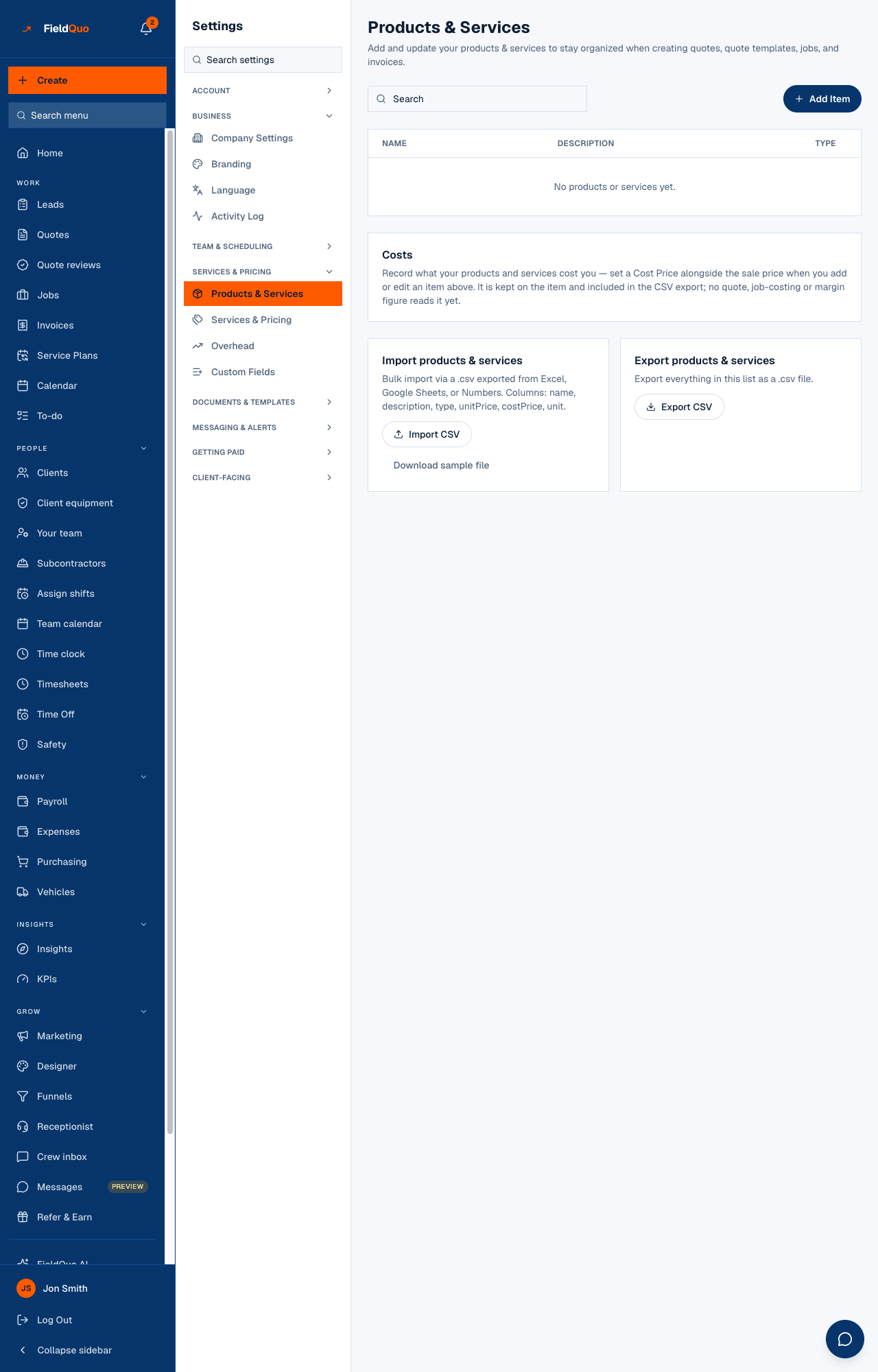
Under the list sit two cards: Costs and Import products & services. There is no export: the price book comes in from a file but does not go back out as one.
How to add or edit an item
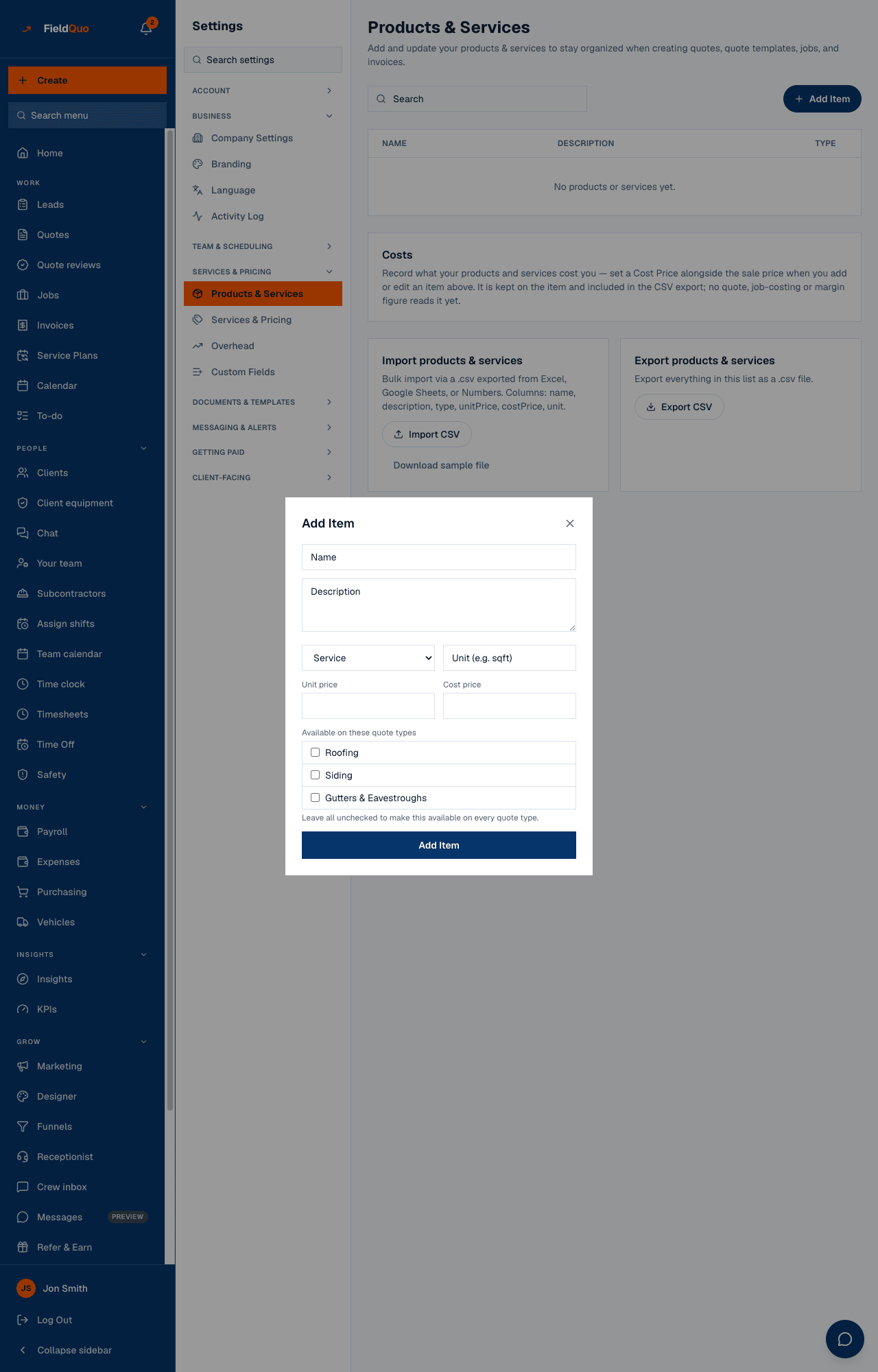
- Press Add Item (or the pencil on an existing row).
- Fill in the name, an optional description, the type — Service or Product — and a unit such as sqft or door.
- Enter the Unit price (what the client pays) and, if you know it, the Cost price (what it costs you).
- Under Available on these quote types, tick the quote types this item belongs to. Leave every box unticked and it is offered on every quote type.
- Press Add Item or Save Changes.
Delete is permanent. The confirmation says it plainly: the price and description are removed for good. Quotes already written keep the numbers they were built with, so deleting an item never changes a sent quote.
What each field changes
| Field | What it does today |
|---|---|
| Unit price | The rate the line lands with when you add the item to a quote. You can still change it on that quote. |
| Cost price | Kept on the item. No quote, job-costing or margin figure reads it yet — the Costs card on the screen says so. |
| Unit | Printed on the quote line (sqft, door, hour). Free text. |
| Available on these quote types | Filters where the item is offered in the quote builder. No ticks means everywhere. |
| Type (Service / Product) | A badge on the list. It does not change pricing. |
Items from here appear in the quote builder's line-item table for the matching quote type, and the quote takes the item's name and description in the quote's own language when a translation exists — see Lines from your price book and Translations.
Import
Import CSV takes a .csv exported from Excel, Google Sheets or Numbers with the columns name, description, type, unitPrice, costPrice and unit; Download sample file gives you a one-line example to start from. Imported items keep the language they were written in — nothing is translated on upload. There is no export back out: keep your own spreadsheet if you want a copy of the list as a file.
Add standard items to Products & Services on the Services & Pricing screen seeds a trade's usual add-ons (hinges, handles, drawer slides for cabinet work) into this list, already linked to that quote type. Edit their prices here afterwards.
Who can see it
A price book is prices, so the row and the list are shown only to members whose access grid has showPricing on — the Estimator, Dispatcher and Manager levels, plus owners and admins. Crew do not see it. Adding, editing, deleting and importing are refused for anyone but an owner or admin.
常见问题
Where do I set the per-door or per-square-foot rate for my trade?
On Services & Pricing, in the trade's rate card. This screen is for the extras you add on top.
Does the cost price feed my margin on a quote?
Not yet. It is stored on the item, and the screen says nothing reads it. The margin on a quote comes from Material Costs and Overhead.
If I delete an item, does an old quote lose the line?
No. The quote keeps the description and price it was built with.
这篇文章有帮助吗?