

Add a client
The New Client form field by field — client type, contact details, address, country, language and notes — and the other places a client gets created.
本文目前提供英语、法语和西班牙语版本。您正在阅读英语版本。 Français · Español
A client record is what a quote, a job and an invoice hang off. You can create one on its own from the Clients list, or on the spot while you are writing a quote. Either way the same fields are saved and the same permission is checked.
Overview
New Client is a single form. Only the name is required; everything else can be filled in later from the client record. Two choices on the form are worth getting right the first time: the Client type, which decides whether the address is where the work happens, and the Language for their documents, which decides the language of every quote, invoice and email that client receives.
How to add a client
- Open Clients and press New Client (or press Create at the top of the sidebar and choose Client).
- Choose the Client type: Homeowner for an individual whose jobs are at their own address, or Company / Contractor for a business whose job sites vary. A business gets an extra Contact person field.
- Type the Name (or Company name). This is the only required field — the form refuses to save without it.
- Add the Phone and Email. The email is checked when you save: an address that cannot be delivered to is refused with the fault named, because every quote and invoice will go to it.
- Start typing in Address and pick the suggestion. Picking one fills in City, Province and Country for you; typed by hand, fill those in yourself.
- Set the Language for their documents and any Notes, then press Create Client. The new record opens straight away.
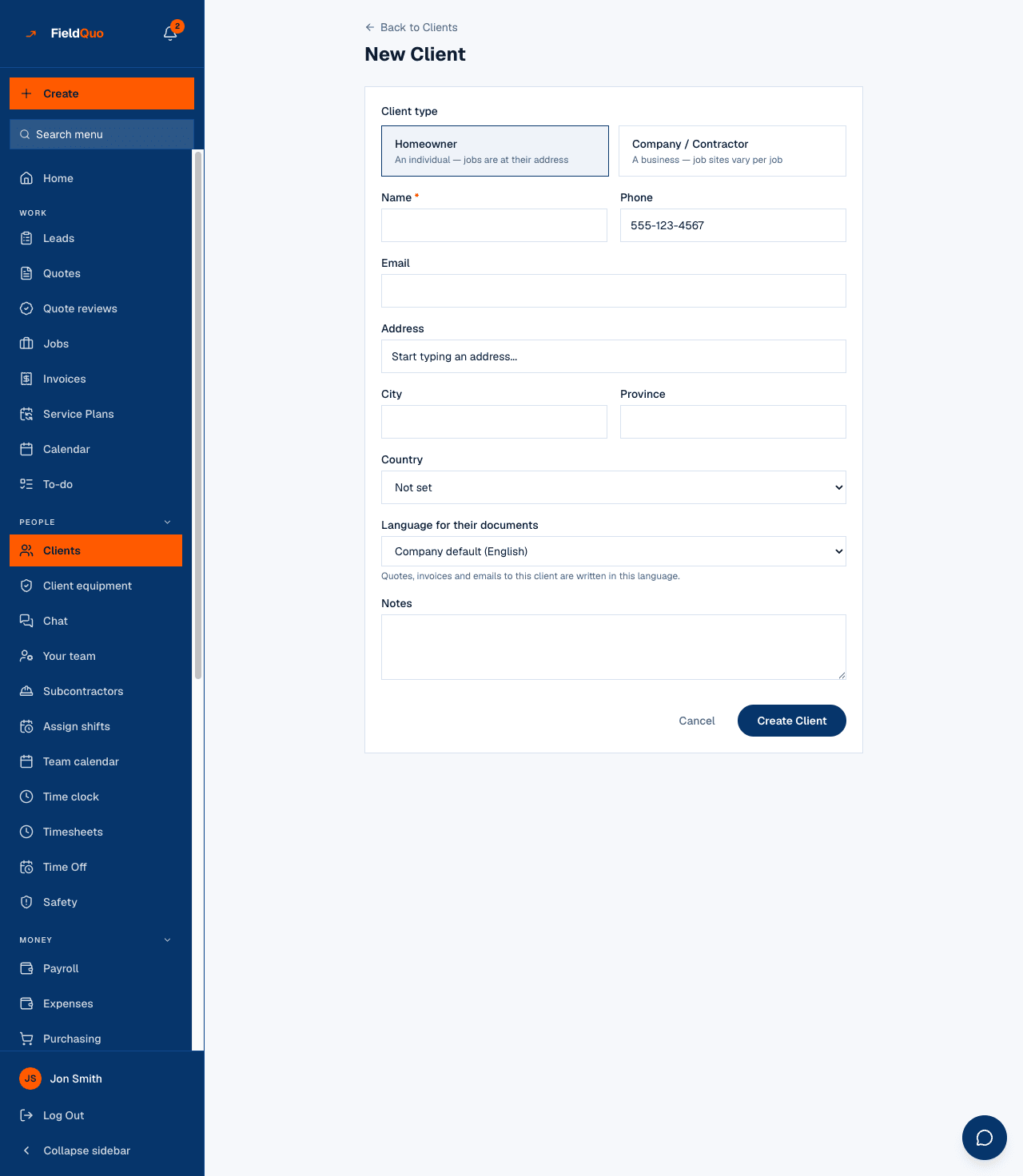
The Country field starts as Not set, and FieldQuo does not guess it from your own company's country. It is what the sales-tax lookup keys on — “ON” could be Ontario or a typo — so a client with no country falls back to your company's default tax rate until somebody sets it. Picking the address from the suggestions sets it automatically.
What each field does
| Field | What it changes |
|---|---|
| Client type | Homeowner: the address is the job site. Company / Contractor: the address is their office and each job carries its own Site address. Also adds the Company badge on the list. |
| Name / Company name | Required. Printed on every quote, invoice and email. |
| Contact person | Business clients only — the person you deal with there. Shown under the company name on the list and on the record. |
| Phone | Formatted as you type. Used for appointment reminder and on-my-way texts, and for tap-to-call on the equipment call list. |
| Where quotes, invoices, the portal link and review requests are sent. Validated on save; leave it blank for a client who is only a phone number. | |
| Address, City, Province | Shown on the card and the record. For a homeowner this is where the crew goes. |
| Country | Feeds the sales-tax lookup with the province. See Sales tax on invoices. |
| Language for their documents | The language of every document and email to this client. Company default follows your company's setting. See A client's language. |
| Notes | Free text for your team only — never printed on a document. See Client notes. |
The other places a client gets created
- While writing a quote. The quote builder's client picker has a new-client form with the same fields, including the language, so you never have to leave a half-written quote. See Build a quote.
- When a lead becomes a quote. Converting a lead creates the client from the lead's name, email, phone and address — after first checking whether a client with that email or phone already exists. See Convert a lead to a quote.
- From a CSV. Import on the Clients list creates one client per row with a name. Rows with an undeliverable email are skipped and counted. See Import clients from a CSV.
Who can add a client
Creating a client needs Clients and Properties at View and edit full client and property info or higher — the Estimator, Dispatcher and Manager presets. Anyone below that does not see the New Client button, and the form itself refuses them with a no-access panel if they reach it by bookmark. Every new client is written to the Activity Log as “Added client …” with who did it.
常见问题
Does the client get an email when I add them?
No. Creating a record sends nothing. The first thing a client receives from you is the first quote, invoice or booking you send.
I picked the wrong client type. Can I change it?
Yes — press Edit on the record and choose the other type. Switching a business back to Homeowner clears the contact person.
Why was the email refused?
The address cannot be delivered to — a missing domain, a typo like a double @, or a space inside it. Fix it or leave it blank; a blank email is allowed.
这篇文章有帮助吗?